VPS Hosting for WordPress: Is It Better Than Shared Hosting?
Discover whether VPS hosting for WordPress is better than shared hosting. Compare speed, security, costs, scalability, and features to choose wisely.
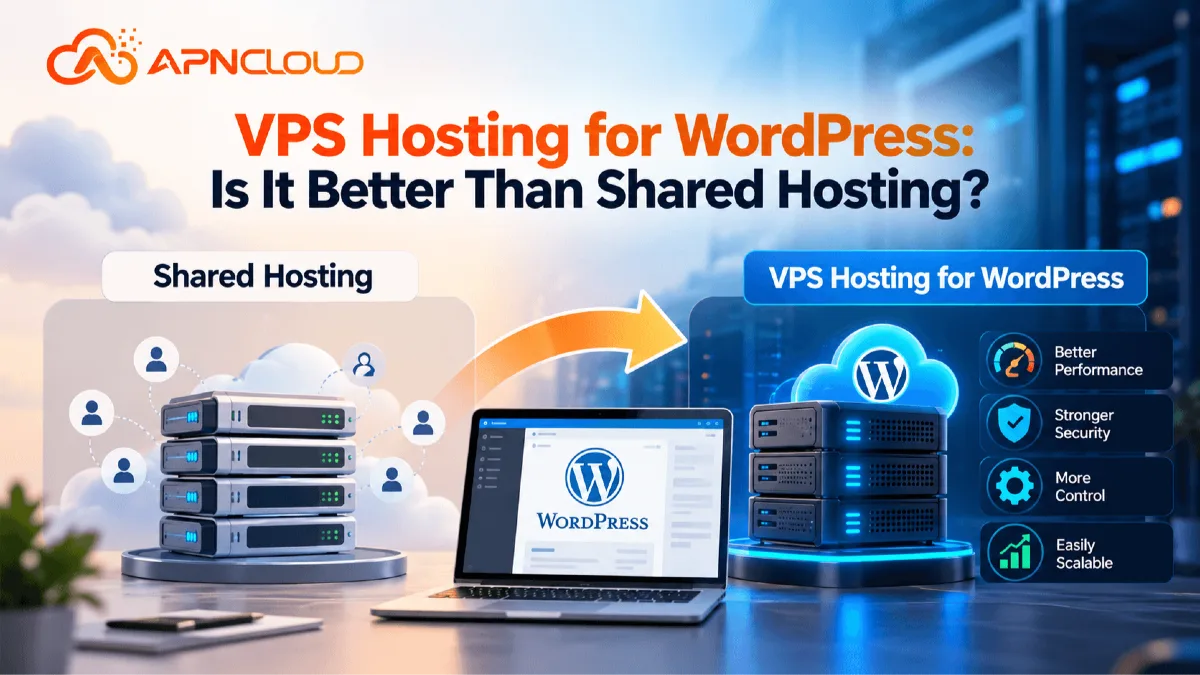
Choosing the right hosting environment is one of the most important decisions when building a WordPress website, yet it is also one of the easiest decisions to misunderstand. Many beginners start by comparing hosting prices, storage capacity, or promotional offers without considering how the website will actually operate. A personal blog, a small business website, a busy online store, and a membership platform can all run on WordPress, but their hosting requirements may be very different. Some websites need only a simple hosting account with a familiar control panel, while others require greater processing power, more memory, flexible server configuration, and better control over resource allocation. This is where the discussion about VPS hosting for WordPress becomes important. Shared hosting is often the most convenient starting point because it allows several customers to use the infrastructure of a hosting server while the provider handles most server-level administration.
A virtual private server, commonly called a VPS, uses virtualization technology to create separate server environments with allocated resources and greater configuration flexibility. Both hosting models can run WordPress successfully. However, the difference between them becomes more noticeable when a website grows, introduces demanding plugins, handles frequent database operations, or requires specialized software. Imagine a local business launching its first WordPress website with ten informational pages, a contact form, and a small blog. The business might receive a few hundred monthly visitors and make content updates only occasionally.
A reliable shared hosting plan could support this website comfortably without requiring the owner to manage Linux services, databases, operating-system updates, or security configurations. Now consider another business operating a WooCommerce store with thousands of products, customer accounts, order notifications, inventory synchronization, complex product filters, and frequent promotional campaigns. Its server must process dynamic requests, communicate with databases, support simultaneous customers, and execute background tasks. If the existing shared hosting account repeatedly reaches CPU, memory, or process limits, moving to a properly configured VPS could provide more flexibility and room for growth. The important phrase is properly configured. A VPS does not automatically make every WordPress website faster, more secure, or more reliable. Server hardware, application optimization, caching, database performance, network quality, security maintenance, and resource planning all influence the final result.
Furthermore, an unmanaged VPS introduces technical responsibilities that many beginners do not initially expect. A poorly maintained VPS may create more problems than an adequately managed shared hosting account. For businesses, choosing hosting should therefore involve balancing performance, affordability, technical knowledge, and operational responsibility. This guide explains how shared hosting and VPS hosting work, the situations in which each makes sense, how server resources affect WordPress performance, and what to consider before upgrading. We will also cover managed VPS options, practical examples, security considerations, migration steps, common mistakes, a decision checklist, and frequently asked questions.
By the end, you should be able to identify whether your WordPress project needs its own virtual server or whether a quality shared hosting plan remains the more practical choice. The goal is not to recommend the most expensive hosting environment. It is to help you select hosting that supports your website effectively without introducing unnecessary costs or complexity.
Understanding Shared Hosting and How It Runs WordPress
Shared hosting is a website hosting service in which multiple customer accounts operate on infrastructure managed by the hosting provider. Each customer normally receives access to a hosting control panel where they can manage domains, website files, databases, email accounts, SSL certificates, DNS-related settings, and other available features. Behind that control panel, the hosting company maintains the operating system, web server, database services, and infrastructure needed to keep websites functioning. Customers do not normally control the entire server because its configuration must support multiple accounts safely and consistently. This arrangement makes shared hosting particularly suitable for beginners who want to publish content without learning server administration.
Installing WordPress may involve using an application installer, connecting a domain, enabling HTTPS, selecting a theme, and adding essential plugins. The hosting provider supplies the underlying environment, while the website owner focuses primarily on website content and application maintenance. Shared hosting is not necessarily a slow or outdated solution. A modern shared hosting environment may use NVMe storage, LiteSpeed or another capable web server, PHP optimization, caching tools, SSL, automated application installers, and account-level resource controls. These technologies can help ordinary WordPress websites perform efficiently when properly configured. For example, a small educational blog that publishes articles twice a week might need only modest server resources because most visitors read publicly accessible pages that can be cached. Similarly, a consulting company using WordPress for service descriptions, testimonials, and customer inquiries may have no reason to maintain a separate operating system. Nevertheless, shared hosting has limitations that become important as workloads change.
Resources such as CPU time, memory, entry processes, storage I/O, and concurrent operations may be controlled through account-level limits. These limits help protect the stability of the hosting platform, but a demanding application can eventually exceed what its plan allows. A WooCommerce store running expensive product searches, for example, might create more database work than a lightweight company website receiving a similar number of visitors. Likewise, a WordPress membership platform serving logged-in users may have fewer opportunities to use full-page caching because different visitors require personalized content. High resource usage can lead to slower responses, failed background tasks, or temporary restrictions when the limits of an account are reached. Another limitation is software customization.
Shared hosting customers generally cannot install arbitrary system-level packages, change kernel settings, or modify server-wide services. This is intentional and useful for most ordinary websites, but it can restrict developers who require specialized runtimes or configurations. Security operates through shared infrastructure with account isolation and provider-managed controls. The provider's maintenance and isolation practices are therefore important when evaluating service quality. Shared hosting remains a sensible choice for websites whose requirements fit within these boundaries.
Before assuming that your WordPress installation needs a VPS, examine the actual workload, identify available resources, and determine whether website optimization could solve existing problems. For a broader explanation of these differences, read APNCloud's Shared vs VPS Hosting: Which Hosting Is Right for Your Website?. Understanding shared hosting first helps establish a realistic baseline against which the benefits and responsibilities of VPS hosting can be evaluated.
What Is VPS Hosting for WordPress and How Does It Work?
VPS hosting for WordPress means running a WordPress website within a virtual private server environment rather than relying entirely on a conventional shared hosting account. A VPS is created when virtualization technology divides the resources of a physical server into separate virtual machines. Each virtual machine operates with its own allocated computing resources, operating-system environment, and configuration. Depending on the service, a VPS may include root access, allowing authorized administrators to install software, manage services, configure security controls, and customize the server. Although multiple VPS instances may still share the underlying physical hardware, the virtualization platform provides separation between their operating systems and resource allocations.
This is an important distinction: a VPS is not the same as renting an entire dedicated physical server, and its assigned resources do not guarantee exclusive ownership of every underlying hardware component. For WordPress, the primary attraction is flexibility. A website administrator can build a server environment around the application's needs, selecting compatible versions of PHP, configuring a web server, running MySQL or MariaDB, adjusting process limits, and deploying supported caching technologies. For example, a Linux VPS running a suitable Linux distribution can host WordPress with Nginx or Apache, PHP-FPM, and a database service. Additional tools may be installed when they are useful and compatible with the selected operating system. This flexibility can support complex WordPress websites, custom development workflows, or businesses running several related applications.
A developer might want a separate staging environment where updates are tested before reaching the public website. An agency may need greater control over software versions or background services used across multiple projects. A growing online store might benefit from adjusting database memory, PHP workers, and caching around its specific workload. These possibilities explain why VPS hosting becomes attractive as technical requirements expand. However, VPS performance is not determined by the hosting category alone. A server with two virtual CPU cores and limited RAM could perform poorly if too many services are installed or applications consume more memory than expected. A well-maintained shared hosting platform may also deliver excellent results for common WordPress workloads because its server stack has already been optimized by experienced administrators.
This means the decision should focus on requirements rather than assumptions about one hosting category being universally superior. Beginners should also distinguish between self-managed and managed VPS services. With an unmanaged server, the customer or their administrator generally handles operating-system configuration, service installation, updates, security hardening, monitoring, and troubleshooting. Managed VPS hosting includes additional administration services, but their exact scope depends on the provider and plan. Some providers maintain core server components while leaving WordPress plugin updates or website development to the customer.
Others may offer more comprehensive assistance. Always confirm what is included before purchasing. If the technology is unfamiliar, APNCloud's What Is VPS Hosting? A Beginner's Guide to Virtual Private Servers explains the fundamentals. In practical terms, WordPress VPS hosting is most valuable when the website benefits from additional control, resource planning, customized configurations, and the ability to manage a more demanding application environment.
VPS Hosting for WordPress vs Shared Hosting: Performance and Speed
Website performance is often the main reason people consider replacing shared hosting with a VPS. Unfortunately, it is also an area where unrealistic expectations can lead to unnecessary spending. A faster server can help a WordPress website, but purchasing more resources does not automatically resolve every performance problem. WordPress relies on several components working together, including the web server, PHP runtime, database, themes, plugins, media files, caching system, and external services. When a visitor opens a page, the hosting environment may need to process PHP instructions, retrieve information from the database, assemble the requested content, and deliver HTML, stylesheets, scripts, and images to the visitor's browser. Some of this work can be avoided through caching, while other operations must be processed dynamically. The amount of work depends heavily on the website's design and functionality. A simple article page may require very little processing when served from a full-page cache.
By contrast, a checkout page may need real-time inventory information, session management, customer-specific details, and payment-related operations that cannot safely be handled through ordinary public-page caching. A VPS can be helpful when an application needs more processing capacity or configuration control than its existing shared hosting account provides. For example, a website experiencing sustained CPU restrictions might benefit from a larger resource allocation, provided those resources address the actual bottleneck. Likewise, additional memory may help a database-heavy WordPress application when existing memory pressure is reducing performance. However, a poorly optimized plugin can continue creating expensive database queries even after migration. An oversized theme may still load unnecessary JavaScript, and images that have not been compressed can continue slowing down visitors regardless of server specifications. This is why evaluating VPS performance requires more than checking a package description.
Useful measurements include server response time, CPU usage, memory consumption, disk activity, database query duration, cache effectiveness, and real-user page performance. Performance tests should be repeated under comparable conditions rather than relying on one isolated result. Tests conducted immediately after clearing a cache may produce different results from those performed after the cache has warmed. Network latency and visitor location also affect perceived speed. A content delivery network can help deliver static content closer to visitors, but it cannot automatically eliminate slow server-side application processing. The official WordPress performance optimization documentation explains that hosting configuration, software, caching, images, and databases all influence performance.
As a practical example, imagine two WordPress websites receiving five hundred visits per day. The first publishes educational articles using a lightweight theme and effective caching. The second operates a membership system where visitors log in, update profiles, complete activities, and generate personalized reports. Even though both websites receive the same number of visits, the second may create significantly more server work. Moving the first website to a VPS may provide little noticeable improvement, while the second could benefit from additional resources and configuration flexibility. This demonstrates why traffic alone is not enough to select hosting. The better approach is to understand application behavior, identify measurable restrictions, optimize obvious inefficiencies, and then choose a hosting environment that provides sufficient capacity for current use and expected growth. A well-configured VPS can be an effective performance solution, but only when its capabilities match the website's actual requirements.
CPU, RAM, NVMe Storage, and Bandwidth: What WordPress Actually Needs
Understanding server resources helps WordPress owners compare VPS plans without being distracted by specifications that may not be relevant to their websites. CPU, RAM, storage, and bandwidth perform different functions, and each can influence website performance in specific circumstances. The CPU executes instructions required by the operating system, PHP processes, database engine, web server, and background applications. A website with frequent dynamic requests may need more processing capacity than a mostly static blog. However, CPU core counts alone do not reveal the entire performance picture. Processor architecture, allocation policies, application efficiency, and server configuration also matter.
A virtual CPU represents processing capacity allocated through virtualization, but two hosting providers offering the same number of vCPU cores may deliver different results. RAM, or random-access memory, provides working space for active software. The operating system uses memory, as do PHP processes, databases, cache services, and monitoring tools. A small WordPress installation may run with relatively modest memory requirements, while a larger application using a hosting control panel, database services, and multiple PHP workers may require substantially more. For planning purposes, a small VPS with approximately 2 GB of RAM might be considered for a carefully configured lightweight WordPress environment, but this is not a universal recommendation or a guarantee of sufficient capacity. A server with 4 GB or more may provide additional flexibility for certain combinations of applications and services. The correct amount depends on real memory usage and the software installed. If memory regularly becomes exhausted, applications may stop responding or the server may experience severe slowdowns.
Storage is another major consideration. WordPress uses storage for core files, themes, plugins, uploads, database information, logs, and temporary data. NVMe storage can offer strong input/output performance, which may be valuable for frequently accessed databases and file operations. Nevertheless, storage speed and storage capacity should be evaluated separately. A server with fast storage can still run out of disk space, and insufficient capacity can cause serious application problems. Business owners should estimate their existing website size, future uploads, database growth, log retention, and backup requirements before choosing a package. Bandwidth refers to the amount of data transferred between the server and external systems or users, while network port speed describes a separate aspect of connectivity.
A website containing large images, downloadable files, or media can consume more data transfer than a lightweight informational website. Yet there is no fixed relationship between visitor numbers and bandwidth because browsing behavior, caching, file sizes, and page design vary. The same principle applies to additional services such as Redis, control panels, staging environments, and scheduled workers. Every service consumes resources, so it should be included in capacity planning. Rather than purchasing the largest VPS available, measure existing resource usage where possible, estimate reasonable growth, and choose a plan with adequate capacity and a clear upgrade path. Review APNCloud's How Much Does VPS Hosting Cost in 2026? for broader context on how resource allocations, management services, software licenses, and optional features affect hosting costs. The objective is to choose balanced resources that support WordPress efficiently without spending unnecessarily on unused capacity.
WordPress Security, Isolation, Backups, and Server Management
Security is another consideration when comparing WordPress hosting environments although choosing a VPS does not automatically guarantee stronger protection. Hosting and VPS hosting use different administrative models and the security outcome depends heavily on configuration, maintenance, application practices and provider infrastructure.
In hosting the provider normally manages the operating system, web server and underlying platform. Customer accounts operate within established restrictions designed to reduce the possibility that one customer can interfere with accounts. The website owner still remains responsible for WordPress-level tasks, including maintaining trustworthy themes and plugins using strong account credentials managing administrator permissions and keeping the application updated.
Shared hosting therefore reduces some server-administration responsibilities without eliminating the need for website security. VPS hosting provides a virtualized operating-system environment, typically with greater control over system users, firewall rules, software packages, services and access policies. This flexibility can be helpful for organizations with security requirements. For example an authorized administrator may want to restrict management access establish application users, configure monitoring or control which server services are exposed to the network. However those benefits depend on implementation. A VPS running software, unnecessary services, weak credentials or insecure permissions can expose a business to significant risk. Server isolation should never be confused with independence from infrastructure failures or with immunity from application vulnerabilities.
WordPress itself also requires continuing attention. Outdated plugins, unsupported themes, excessive administrator permissions and maintained custom code can introduce vulnerabilities regardless of the hosting category. Administrators should use supported software apply security updates after testing restrict privileged access and remove applications that are no longer needed.
Strong authentication and multifactor authentication, where supported provide protection for sensitive accounts. Backups are equally important because even a maintained website can encounter application errors, configuration mistakes, accidental deletion or infrastructure problems. A practical backup strategy should include both WordPress files and the database protect copies from unauthorized access and retain recoverable versions outside the primary hosting environment where possible.
Merely creating a file is not sufficient; restoration must also be tested periodically. A business may discover late that an outdated backup is incomplete or that a database cannot be restored correctly. Monitoring can help identify problems before they become severe. Useful alerts include website downtime, unusual resource usage, low disk capacity failed backup jobs and service failures. VPS owners may need to implement these tools themselves unless their management package covers them.
This is where managed VPS hosting can provide assistance. A managed provider may handle specified operating-system updates, server monitoring, security configuration or service troubleshooting depending on the agreement. The customer should confirm which tasks remain their responsibility, including WordPress updates, plugin compatibility, website modifications, incident response and backup restoration.
Security should be treated as a process rather than a feature purchased once. A secure shared hosting environment can be suitable for business websites while a properly maintained VPS may offer greater flexibility, for organizations that require additional control. The correct choice depends on the websites risk profile, technical expertise, available management services and willingness to maintain the environment consistently.
Managed VPS vs Unmanaged Linux VPS for WordPress Beginners
One of the mistakes WordPress owners make when looking at VPS hosting is comparing a self-managed server directly to a fully set up shared hosting account. They often forget how much work is involved in running a VPS. A Linux VPS gives you a lot of freedom. That freedom comes with duties. With a VPS the customer usually gets a virtual server with an operating system like Ubuntu, Debian or AlmaLinux depending on what the provider offers. After that the customer—or someone they hire—has to set up the web server, database software, PHP environment, security settings, backup system and monitoring tools. The administrator also needs to know how to fix problems when services fail handle when the server runs out of resources apply updates and keep access details safe. Even a simple WordPress site needs supporting services to run properly.
For someone who knows Linux well these tasks are doable. Offer real control. A developer might pick the web server, tweak PHP settings set up caching check error logs and automate deployments. So an unmanaged VPS can make sense for people who're technically skilled and want full control over their environment.. For many small business owners doing regular server administration is not worth the time. Their main goals are usually publishing content getting customer messages selling products and making sure the website stays online. Learning how to manage an operating system while running a business can add stress. That’s where managed VPS hosting comes in.
It helps reduce some of that workload. Depending on the provider managed services can include server setup keeping the operating system up to date securing the server monitoring services helping with backups, configuring software and offering technical support.. There’s no standard industry rule that says all managed VPS plans are the same. Some providers manage the server underneath. Don’t help with WordPress plugin issues, custom code, application development, content edits or third-party integrations. Others offer those services. Only at an extra cost. Before choosing a managed VPS ask what the provider handles how updates are managed, whether help is available in emergencies and who is responsible for backups. Another thing to consider is the hosting control panel. Shared hosting usually comes with a to-use control panel.
An unmanaged VPS may not have one at all. Installing a commercial control panel can bring added licensing fees. Use more system resources. If the customer prefers a way to manage the server they should check if a good control panel is included, supported or available as an add-on. Think about an agency that runs several WordPress sites. If the team already knows Linux and regularly works on production servers a self-managed VPS might give them the flexibility to adapt applications, to client needs.. If the same agency focuses on design and content and has no system administrator, a managed VPS would be a better fit. The same idea applies to online stores that are growing.
A store owner may need server power but they don’t have to take on the job of maintaining every software part. When picking between managed and unmanaged VPS plans look at the cost of operation not just the monthly price. Include time spent on management, monitoring, software licenses, backups expertise needed and the impact of downtime. A cheaper unmanaged VPS can end up costing more if it’s ignored or if fixing issues requires hiring help. For beginners the hosting choice is usually the one that offers enough resources while keeping management tasks realistic and manageable.
When Should You Upgrade WordPress From Shared Hosting to VPS?
Deciding when to upgrade from shared hosting to a VPS needs a look at website needs instead of just looking at traffic numbers. Some websites can handle a lot of visitors with shared hosting that is set up properly. Other sites might need resources even if they do not get as much traffic. The difference is in how complicated the work's how much the website uses resources and what can be changed. A clear sign that something is wrong is when the hosting account limits are reached regularly during website use. If the hosting control panel keeps showing CPU use, memory limits, entry process limits or storage problems find out what is using those resources. A WordPress store that is slow when searching for products or doing database tasks might need power but it could also have problems with plugins database queries or how caching is set up. Always check those things before moving to a VPS.
Another reason to think about a VPS is if the website needs control at the server level. Teams that work on WordPress might need extensions, certain services, background processes or server setups that shared hosting does not offer. A VPS can give a setup for these needs as long as the hosting company lets the right changes happen. Growth of a website can also be a reason to think about a hosting setup. Imagine a store that starts with a simple online list of products and then adds customer accounts, a checkout system, frequent changes to inventory, special offers and connections with other business tools. Each new part can add tasks and more database work. The website might need power or more control over how it works.
A VPS could be a next step. Agencies that handle WordPress sites may face similar issues but putting all the clients on one VPS is not always the right way. Sharing resources keeping security separate having backup rules and what happens if one server stops working are all things to think about. There are also times when moving to a VPS is not needed. A personal blog that uses a design, optimized images, not a lot of traffic and has good shared hosting may not get much benefit from a VPS. A small business site that shows services, contact info and a few news posts may not need server control. If the website is slow make sure the problem is with the hosting before thinking a new server will help.
Test pages, look at plugin activity check requests measure how the database works and see how caching is set up. If mobile users have trouble because images and scripts are too big a VPS alone will not fix those problems. Another sign is how the hosting works during times. For example a learning site may have a lot of activity when students finish their work and an online store may get traffic during holiday sales. Watching how the website uses resources during these times can show if it needs CPU, more RAM or more database power.. Moving to a VPS does not mean that planning for enough resources is no longer needed. A VPS is still a server with limits. Can get overloaded if the demand is too high.
Before moving write down the performance issues find out what is causing them and decide what success would look like after the move. Getting more consistent responses fewer times when limits are hit having extra memory or being able to use the right software are better goals than just saying the website should be faster. If fixing the issues and keeping the hosting works staying on shared hosting might be the best choice financially and, in terms of how things run. Upgrade when the need is clear and when the extra resources and work are worth it.
Step-by-Step Guide: Moving a WordPress Website to VPS Hosting
Migrating a WordPress website from shared hosting to a virtual private server requires careful planning, technical preparation, and proper testing. A successful migration should preserve your website's content, functionality, search engine visibility, customer information, and essential business operations. Whether you are moving a personal blog, a business website, or a WooCommerce store, following a structured process helps reduce the risk of downtime, missing files, database errors, and unexpected performance problems. The following ten steps explain how to migrate WordPress to VPS hosting safely, with practical recommendations for beginners and growing businesses.
Step 1: Review Your Current WordPress Website and Hosting Requirements
Before moving your WordPress website from shared hosting to a VPS, the first and most important task is to understand how your existing website operates and what resources it currently consumes. Many website owners decide to upgrade their hosting after experiencing slow loading times, frequent resource-limit notifications, or increasing traffic, but they do not investigate the actual causes of these problems. A successful migration begins with a detailed assessment rather than purchasing a larger server immediately. Start by logging into your WordPress administration dashboard and reviewing the installed WordPress version, active theme, plugins, and available updates.
Open the WordPress Site Health section to identify information about your PHP version, database environment, active extensions, and possible configuration warnings. This information helps you determine whether the new VPS will support the software your website needs. Next, examine your existing hosting control panel and record the amount of disk space, bandwidth, CPU, and memory your website uses, wherever those statistics are available. Pay attention to resource usage during normal business hours and busy periods rather than relying on a single measurement. For example, a small company website might use very little processing power throughout the day, while an online store may experience significant activity when customers search for products, add items to their carts, and complete purchases. Understanding these differences will help you select an appropriate VPS configuration.
You should also calculate the size of your WordPress installation, including uploaded images, themes, plugins, database tables, backups, and important application files. Remember that website storage requirements can increase over time as you publish articles, upload photographs, receive customer orders, and install new features. Review your domain and DNS configuration so that you know which service currently manages your DNS records. Identify any email services connected to the domain because moving a website does not necessarily mean moving its email accounts. If your domain uses separate email hosting, its existing MX records may need to remain unchanged during migration. Website functionality should also be documented carefully. Make a list of essential features such as contact forms, WooCommerce checkout, payment integrations, customer login systems, membership subscriptions, booking functionality, automated notifications, and scheduled tasks.
These features will require testing after migration. If your website communicates with external applications through APIs, check whether those integrations depend on a particular server IP address, firewall configuration, or callback URL. Changing servers may affect these connections. It is also useful to review your existing website's performance using repeatable tests and identify which pages load slowly. Record representative results so that you can compare performance after migration. Finally, determine who will manage the new VPS. If your business does not have someone familiar with Linux server administration, managed VPS hosting may be worth considering.
By completing this assessment, you will understand your website's technical requirements, operational dependencies, and potential migration challenges. This preparation reduces unnecessary expenses and makes the remaining migration steps more predictable.
Step 2: Choose the Right VPS Hosting Plan for Your WordPress Website
Selecting the right VPS hosting plan is an essential part of a successful WordPress migration because the resources, operating system, management services, and infrastructure you choose will influence website performance and future flexibility. It can be tempting to select the least expensive VPS package or purchase a server with unusually high specifications, but neither approach guarantees the best outcome. Instead, choose a hosting environment based on the technical requirements identified during your initial website assessment. Begin by comparing the virtual CPU allocation offered by different VPS plans. CPU resources are important because WordPress uses processing power to execute PHP scripts, communicate with databases, generate dynamic content, and complete background tasks. Websites with complex functionality may need more processing capacity than simple informational blogs. However, advertised vCPU counts should not be treated as a complete performance measurement because the underlying processor, virtualization platform, and resource allocation policies can affect results.
Next, evaluate RAM capacity. Memory is used by the operating system, web server, PHP workers, database software, and any additional services installed on the VPS. A lightweight WordPress website may operate with a relatively small memory allocation, but a busy WooCommerce store or server using a control panel may need more. For certain small deployments, a VPS offering approximately 2 GB or 4 GB of RAM may provide a reasonable starting point for evaluation, but these figures are not guaranteed requirements. Always consider the combined memory needs of your software. Storage deserves equal attention. NVMe SSD storage can support responsive file and database operations, but capacity is just as important as speed. Check how much space your current website occupies and allow room for future uploads, database growth, operating-system files, logs, and temporary data.
Confirm how backups are stored because server snapshots or external backup repositories may have separate storage arrangements and costs. You should also compare monthly data-transfer allowances and network connectivity, particularly if your website serves large files or receives visitors from multiple countries. Server location can influence network latency, although caching and content delivery networks may also help visitors in different regions. Another important decision involves the operating system. A Linux VPS is commonly used for WordPress because it supports widely adopted web server, PHP, and database technologies. Select a maintained Linux distribution supported by your hosting provider and application stack. You must also decide whether to purchase managed or unmanaged VPS hosting.
With an unmanaged service, your team generally handles software installation, security updates, backups, monitoring, and troubleshooting. A managed service may cover some of these tasks, but the exact responsibilities depend on the provider. Review support availability, backup options, upgrade procedures, pricing terms, and optional software licensing before ordering. Avoid assuming that features such as daily backups, control panels, advanced security, or WordPress migration assistance are included unless the provider explicitly confirms them.
If you are considering APNCloud hosting solutions, review the currently published specifications and management terms to determine whether a suitable plan is available. A carefully selected VPS should meet your website's present requirements while providing a practical route for future growth without introducing unnecessary administration or operating costs.
Step 3: Create a Complete WordPress Backup Before Migration
Creating a complete and reliable backup is one of the most important precautions when migrating WordPress from shared hosting to VPS hosting. Even if your current hosting provider offers automated backups, you should not assume that these backups contain everything required to restore your website. A WordPress installation consists of several interconnected components, including application files, themes, plugins, media uploads, configuration settings, and database information. Losing any essential component can prevent the migrated website from working correctly. Begin by identifying the files and directories associated with your existing installation. The WordPress directory normally contains core application files and folders, while the wp-content directory stores themes, plugins, uploads, and other application-generated content.
The wp-config.php file contains important configuration settings, including database connection information. Treat configuration files and backup archives as sensitive information because they may contain credentials or other private data. The WordPress database is equally important. It stores articles, pages, user accounts, website settings, menus, plugin information, and other structured content. For WooCommerce websites, it can also contain product information, customer records, orders, and transaction-related metadata. A backup containing only WordPress files cannot fully restore this information. You can create backups through supported WordPress backup plugins, hosting control-panel tools, or established server-administration procedures. Choose a method appropriate for your technical knowledge and verify that both files and database information are included. Before initiating the backup, consider whether your website is actively receiving new data. A simple informational website may experience relatively few changes, whereas a busy online store can receive new orders, customer registrations, and inventory updates throughout the day. If files and database contents are copied at different times, the resulting backup may not represent a consistent application state.
For transactional websites, arrange a controlled migration window or another reliable method for creating a consistent final copy. Do not disable important business functions without planning how customers will be informed and how incoming data will be handled. After creating the backup, store at least one protected copy outside the current hosting account. Depending entirely on files stored on the same server creates additional risk if the server becomes inaccessible. Suitable alternatives include a trusted external backup repository or another authorized storage environment. Apply appropriate access restrictions and encryption when handling sensitive information.
Do not expose backup archives in publicly accessible website directories. Next, verify the backup instead of assuming that successful completion messages prove it can be restored. Confirm that the expected files and database export are present, and perform a restoration test in a safe environment whenever practical. Record the backup date and preserve the version that will serve as your migration recovery point. If your website includes separately hosted email accounts or other important services, determine whether those systems need independent backups.
Finally, prepare a recovery plan explaining how the original website can remain available or be restored if migration problems occur. A complete, tested, and securely stored backup significantly reduces the risk of permanent data loss and gives you a dependable recovery option throughout the WordPress migration process.
Step 4: Prepare and Configure Your New VPS Server for WordPress
Once you have selected a suitable VPS hosting plan and secured a complete backup of your existing WordPress website, the next step is preparing the destination server. Proper server configuration is essential because a newly provisioned virtual private server may not include the applications, security settings, or supporting services required to run WordPress successfully. Begin by confirming that the VPS has been provisioned with the operating system you selected during the planning stage. Linux distributions such as Ubuntu, Debian, and AlmaLinux are commonly used for web hosting, although the available options depend on the provider. Choose a maintained operating-system release that is compatible with your intended server software. After gaining authorized administrative access, verify the server's basic configuration, including its hostname, network connectivity, available storage, system time, and installed software. Apply relevant operating-system security updates before deploying the website.
If you have purchased an unmanaged VPS, these tasks will normally be your responsibility, whereas some managed VPS providers may perform the initial configuration for you. Next, select the web server technology that will handle visitor requests. WordPress supports common web server environments such as Apache and Nginx, provided the necessary requirements are met. Your choice should reflect application compatibility, available administration experience, and any provider-specific support arrangements. WordPress also needs a compatible PHP environment and a supported database service, usually MySQL or MariaDB. Review the current official WordPress requirements before installing these components, and check compatibility with your themes, plugins, and custom code. Avoid selecting unsupported software merely because it was used on the previous hosting account. However, do not introduce major application version changes during migration without testing them first.
You should also configure appropriate PHP execution settings, database permissions, and resource allocations for the selected VPS. These settings influence how efficiently WordPress processes requests and interacts with its database. If the VPS includes limited memory, avoid installing unnecessary services that could consume resources without providing meaningful benefits. Security configuration is equally important. Establish appropriate administrative accounts, protect access credentials, restrict unnecessary network services, and configure firewall rules according to the services the website actually requires. Administrative access should be limited to authorized users. Where appropriate, use supported authentication protections and avoid giving application processes more privileges than necessary. The website should also be configured to use HTTPS through a valid TLS certificate. Remember that enabling HTTPS on the destination server does not automatically update DNS or migrate existing website content. Backups and monitoring should be prepared before production traffic is directed to the new environment.
Decide where backup copies will be stored, how often they will be created, and how restoration will be tested. Set up practical monitoring for service availability, disk usage, memory pressure, and important application errors. If you plan to use a hosting control panel, confirm that it supports the operating system and software configuration, and include its resource and licensing requirements in your planning. Before transferring WordPress, verify that the destination web server can serve a basic test page and connect to its database service. This helps distinguish underlying server problems from WordPress migration issues later. A properly prepared VPS creates a stable foundation for WordPress and reduces the likelihood of configuration problems during the remaining migration process.
Step 5: Transfer WordPress Files and Database to the New VPS
After preparing the VPS environment, the next stage is transferring the existing WordPress installation from shared hosting to the destination server. This process involves moving website files, importing database information, updating configuration settings, and confirming that WordPress can access its required resources. For beginners, the easiest approach may be to use a reputable WordPress migration plugin that supports the size and complexity of the website. Some migration tools can package WordPress files and database information together, while others require additional steps depending on the source and destination environments. Before choosing a tool, check its compatibility with your WordPress version, hosting environment, available storage, and any application-specific requirements. Large websites and complex WooCommerce installations may require a more controlled migration process handled by an experienced administrator. Alternatively, WordPress can be migrated manually by transferring the necessary files and restoring a database backup through authorized server-management tools. Regardless of the method, begin by confirming that the destination server has sufficient disk capacity and appropriate directory permissions. Copy the website files into the intended hosting location while preserving the directory structure and required application content.
Pay particular attention to the wp-content directory because it contains the website's uploaded media, themes, plugins, and other important assets. Missing files in this directory can lead to broken images, unavailable plugins, or an incomplete website design. The database must also be transferred correctly. Create or identify an appropriately configured destination database and restore the exported WordPress data using a supported import process. Make sure the destination database uses compatible character encoding and that the WordPress application account has only the permissions necessary for its intended operations. Next, update the WordPress configuration to reference the correct database name, authorized database user, password, and database host. Handle these credentials securely and avoid placing them in publicly accessible files or communications.
The destination website should be tested before making broad changes to application URLs. If the website will continue using the same domain name, unnecessary search-and-replace operations may create problems rather than solve them. If the domain or installation path is changing, WordPress URLs and serialized database values require careful handling with compatible tools. For websites with active customer accounts, orders, bookings, or form submissions, maintaining database consistency is particularly important.
A migration copy taken hours before DNS changes may become outdated if new transactions continue on the original website. Arrange a suitable synchronization strategy or controlled transition so that important records are not lost. Also review configuration files, custom redirects, scheduled tasks, and application-specific directories that may not be included by basic migration tools. Depending on the original hosting environment, email delivery, caching, file permissions, and background processing may require adjustments on the new VPS.
After the transfer is complete, verify that the expected database tables and website files are present. Do not delete the original hosting account or announce the migration as complete at this stage. The copied application has not yet been fully validated, and important functionality may still depend on settings from the old environment. Treat file and database transfer as an intermediate stage that prepares the website for detailed testing rather than the final step of migration.
Step 6: Test Your WordPress Website Before Changing DNS Records
Testing your WordPress website on the new VPS before changing its public DNS records is one of the most effective ways to reduce migration problems. A website may appear to have transferred successfully while still containing missing images, broken internal links, incompatible plugins, database connection errors, or configuration issues that become visible only when specific features are used. Because these problems can affect visitors and customers, they should be identified before directing normal website traffic to the destination server. Begin by establishing a controlled preview method that allows authorized administrators to access the migrated website while the existing public domain continues serving visitors from the original hosting account. The appropriate preview method depends on the server configuration and can involve a temporary staging domain, provider-supported preview feature, or another testing arrangement. Make sure the preview process does not accidentally expose private information or create duplicate public pages that search engines may index. Once the destination website is accessible, examine its basic presentation.
Open the homepage, important landing pages, blog articles, contact page, and other high-value content. Confirm that page layouts, navigation menus, images, stylesheets, fonts, and interactive features display correctly. A successful homepage test does not prove that every part of the website works, so include representative pages from different content types. Next, test WordPress administration. Confirm that authorized administrators can log in, access necessary dashboard functions, view installed plugins, and edit content without unexpected errors. Review application error logs for problems that may not be visible on the screen. If the website uses caching, verify that the selected caching system is compatible with the new environment and does not interfere with logged-in users or personalized content.
Contact forms require particular attention because successful form submission does not necessarily guarantee that notification emails are delivered. Check form validation, submission recording, and email delivery through authorized test messages. Websites using WooCommerce or similar applications need additional testing. Examine product pages, search features, category filters, cart behavior, customer accounts, and checkout workflows. Payment integrations should be tested through officially supported sandbox or test modes whenever available, rather than creating unnecessary real transactions. Verify that customer information is displayed only to the appropriate authenticated users.
If the application uses booking systems, memberships, subscription renewals, scheduled tasks, or external APIs, confirm that these services behave as expected in the destination environment. Also examine HTTPS behavior, internal redirects, canonical URLs, and important SEO settings. Incorrect redirects or domain configuration can create navigation problems and search engine complications after migration. Compare the destination's PHP and database behavior with the requirements documented during your initial assessment.
Conduct representative performance tests, but remember that preview environments and production traffic may behave differently. Monitoring CPU, RAM, database activity, and error messages during testing can reveal configuration limitations before launch. Document every problem discovered and address critical issues before proceeding. Finally, confirm that a usable backup remains available and that the original website continues operating normally. DNS changes should occur only after the destination has passed essential functional checks. Careful pre-migration testing protects the visitor experience and provides greater confidence that the new VPS is ready to host the public WordPress website.
Step 7: Update DNS Records and Point Your Domain to the New VPS
After confirming that your WordPress website operates correctly on the destination VPS, the next step is updating your domain's DNS configuration so visitors can reach the new hosting environment. DNS, or Domain Name System, connects human-readable domain names to the network information needed to access websites and related services. When you move WordPress to a different server, the website's destination IP address often changes, which means the relevant DNS records must be reviewed and updated.
However, DNS management should be handled carefully because incorrect changes can affect not only website availability but also email delivery and other services connected to the domain. Begin by identifying the authoritative DNS provider currently responsible for your domain. Your DNS records may be managed through your domain registrar, hosting provider, or a separate DNS service such as Cloudflare. Do not assume that purchasing VPS hosting automatically transfers DNS management to the new provider. Before making changes, record the existing DNS configuration, including relevant A, AAAA, CNAME, MX, TXT, and other service records. This creates a useful reference if you need to investigate unexpected behavior or restore the previous configuration. Next, identify the correct IP address provided for your destination VPS. Update the appropriate website records according to your intended setup. For example, a domain may use an A record for its root hostname and a separate record or CNAME for the www hostname.
The correct configuration depends on your DNS provider, IPv4 and IPv6 availability, and the way your website is intended to respond. If an old AAAA record remains active while the destination has no corresponding IPv6 service, some visitors may experience connection problems. Review all relevant records rather than modifying only one entry. Domain email services require special care. If your email is hosted separately, preserve the records necessary for its operation, including MX and applicable SPF, DKIM, and DMARC records. Unnecessary changes to email-related DNS records can interrupt business communications. Before migration, you may choose to lower the DNS time-to-live value when permitted by your provider, allowing some resolvers to refresh records sooner.
However, reducing TTL immediately before the change does not override previously cached records, and it cannot guarantee instant propagation. DNS updates can become visible at different times because recursive resolvers and client systems may retain cached answers. For this reason, keep the original hosting environment available during an appropriate transition period. Dynamic WordPress websites need additional planning. If the original server continues accepting new WooCommerce orders, customer registrations, or content updates while some visitors are reaching the new VPS, the two databases can become inconsistent.
Establish a suitable maintenance window, controlled final synchronization, or another application-appropriate migration method to protect current data. Once the DNS records have been changed, use reliable DNS checking methods to confirm that the intended hostnames resolve to the new environment. Test the website over HTTPS and ensure that its certificate is valid for the relevant domain names. Avoid making repeated DNS changes simply because one resolver still reports an earlier address. Monitor the transition carefully and investigate differences between network locations when necessary. A successful DNS migration means visitors consistently reach the intended WordPress environment without disrupting essential website functionality, email services, or customer transactions.
Step 8: Monitor WordPress Performance, Security, and Functionality After Migration
Once the domain begins directing visitors to your new VPS, the migration enters an important monitoring period. A website that works properly during preliminary testing can still experience problems after normal traffic returns, especially if production activity creates different demands from those observed in a controlled environment. Monitoring helps you identify resource shortages, application errors, connectivity issues, and unexpected changes before they seriously affect the business. Begin by reviewing the website's availability. Open important pages through the public domain and confirm that visitors can access them over HTTPS.
Test both the main hostname and any supported alternate hostname, such as the www version, to verify that redirects lead to the correct destination. Check the WordPress administration area, contact forms, search functionality, and other frequently used features. For an online store, review whether products, carts, customer accounts, and order-related processes are operating as expected. Next, examine VPS resource utilization. CPU usage, RAM consumption, disk activity, and available storage can provide valuable information about how efficiently the website performs under real traffic. A brief increase in CPU usage does not necessarily indicate a problem, but sustained high resource consumption combined with slow responses or application errors deserves investigation. Memory pressure can also affect website stability, particularly when the web server, PHP workers, database, and additional services compete for limited RAM. Disk capacity should be monitored because logs, temporary files, uploads, and database growth can gradually consume available storage.
Unexpectedly low free space can interrupt normal operations. Server and application logs provide another important source of information. Review relevant web server errors, PHP warnings, database problems, and WordPress application messages. Some issues may not produce obvious errors for visitors, but logs can reveal recurring failures that require attention. Avoid exposing detailed server error messages publicly because they may disclose sensitive configuration information. Email delivery should be checked after migration, especially when WordPress sends notifications through a service affected by server configuration. Test contact form notifications, account-related messages, and other essential application emails using authorized addresses.
Confirm that scheduled WordPress tasks execute correctly. If the new VPS uses a different scheduling arrangement from the previous hosting account, background operations such as publication scheduling, subscription processing, or other plugin tasks may require appropriate configuration. Security monitoring is equally important. Review administrative access, authentication settings, software updates, firewall configuration, and the status of any monitoring or protection services. Confirm that backup jobs are completing successfully and that backup copies are stored according to your recovery plan. For managed VPS customers, understand which alerts the provider monitors and which issues must be investigated by the website owner. Performance measurements should also be collected during normal use.
Compare server response times and user-facing page performance with the baseline recorded before migration. Do not assume that every difference is caused by the VPS because caching, network conditions, plugins, and visitor activity can influence the results. Keep a record of significant changes and any corrections made during the observation period. Monitoring should continue after the initial migration period because WordPress websites evolve as plugins are updated, content grows, and visitor demand changes. Establishing this routine early helps maintain a stable website and allows businesses to recognize when additional resources, application optimization, or configuration changes may become necessary.
Step 9: Optimize Your VPS and Compare WordPress Performance Results
After your WordPress website has successfully migrated and essential functionality has been verified, the next step is evaluating performance and optimizing the new hosting environment. One of the main reasons businesses choose VPS hosting for WordPress is the opportunity to use allocated computing resources and customize server configurations according to application requirements. However, migrating to a VPS does not automatically provide optimal speed. Effective optimization requires measuring performance, identifying genuine bottlenecks, and adjusting relevant settings without compromising website stability or security. Begin by comparing the performance information collected from your previous shared hosting environment with results from the new VPS. Evaluate representative website pages, including the homepage, blog articles, product pages, and any important dynamic functions. Test under reasonably similar conditions whenever possible.
Cached and uncached requests can produce very different results, so record the testing conditions rather than comparing unrelated measurements. Website performance should be evaluated through several indicators instead of one overall score. Server response time, database query performance, page loading behavior, and real-user experience can reveal different kinds of limitations. Tools such as PageSpeed Insights and browser developer tools can help identify client-side issues, while server monitoring and application profiling provide information about backend resource usage. Next, examine PHP configuration. WordPress relies on PHP to process requests, and the number of PHP workers, memory allocations, and execution settings can influence performance. These settings should match the available VPS resources and application workload. Allocating too many workers on a server with limited RAM can create memory pressure rather than improve speed. Database optimization is another important consideration.
MySQL or MariaDB must be configured appropriately for the available memory and expected query activity. Websites using WooCommerce, membership plugins, or complex filtering systems may generate more database operations than simple content websites. Investigate slow queries and unnecessary database activity before assuming that additional hardware is required. Caching can significantly reduce repeated processing. Full-page caching is particularly useful for public WordPress content that does not need to be regenerated for every visitor. However, personalized pages, checkout operations, and account-specific content require careful exclusions or alternative handling.
Object caching may also help suitable applications reduce repetitive database work, although its usefulness depends on the workload and configuration. Image optimization should not be overlooked. Compress oversized images, use appropriate display dimensions, and select suitable formats without unnecessarily reducing visual quality. Review themes and plugins to identify scripts, stylesheets, or database operations that create avoidable delays. Remove unnecessary extensions after confirming that their removal will not affect important functionality. A content delivery network may help visitors access suitable static files from geographically closer locations, but it should not be treated as a complete solution for inefficient server-side processing. After making each meaningful optimization, repeat relevant tests and monitor for unexpected changes. Avoid modifying many server settings simultaneously because doing so makes troubleshooting more difficult.
Maintain backups and apply changes through an appropriate testing process whenever possible. Most importantly, optimize for consistent real-world performance rather than chasing perfect benchmark scores. A successful VPS configuration should support normal business activity, handle expected workloads reliably, maintain sufficient resource capacity, and provide room for reasonable growth. Regular monitoring and thoughtful application maintenance help preserve these improvements as your WordPress website develops.
Step 10: Complete the Migration and Safely Retire Your Old Hosting Account
The final step in moving WordPress from shared hosting to VPS hosting is confirming that the migration is complete and that your website no longer depends on the previous hosting environment. Many website owners make the mistake of cancelling their old hosting service immediately after updating DNS records, but this can create problems when important files, email accounts, databases, or application services have not been fully transferred. A careful final review helps prevent unexpected disruption and ensures that the new VPS can operate independently.
Begin by confirming that your public domain consistently directs visitors to the destination environment. Review the relevant DNS records and verify that the website responds correctly through its intended hostnames. Remember that DNS caching behavior can vary, and some visitors may temporarily reach the previous server after a change. Keeping the original environment available for an appropriate validation period can reduce the risk of disruption. Next, complete a final inspection of the WordPress installation. Verify that published articles, pages, categories, tags, images, themes, plugins, menus, and custom content are present. Confirm that administrator accounts and necessary user permissions work correctly. For websites using WooCommerce, review customer accounts, product information, inventory records, and recent orders. Transactional websites should compare important data between the source and destination to make sure records created during the migration period have not been lost. If a controlled synchronization process was used, confirm that the destination contains the final approved data set.
Check contact forms, email notifications, scheduled tasks, and connections to external business systems. Some applications rely on services configured outside WordPress, including email delivery providers, external APIs, and background jobs. Confirm that these functions are operating from the new VPS rather than depending on the old hosting account. It is also important to review email hosting arrangements. If your domain's email accounts were hosted on the original shared hosting server, cancelling that service without migrating or replacing the email environment could interrupt communication. Identify where email is currently hosted and verify that the necessary records and services remain functional. Backups should be reviewed again before closing the old account. Create a fresh backup of the production WordPress installation on the new VPS, confirm that it includes the required files and database information, and protect an appropriate copy outside the primary server.
Verify that scheduled backups and monitoring arrangements are functioning correctly. Review server security, authorized access, HTTPS certificates, and software maintenance responsibilities. If you have selected managed VPS hosting, confirm which services the provider maintains and how to request support when necessary. Once all dependencies have been checked, document the final environment. Record the hosting provider, relevant server configuration, DNS management arrangements, backup procedures, important application services, and authorized administrative responsibilities in a secure location. Avoid including sensitive credentials in documents accessible to unauthorized users. Before cancelling the previous hosting service, review its billing terms, cancellation procedures, and any data-retention policies.
Confirm that you have preserved everything required for business, technical, and legal purposes. Do not leave unnecessary copies of sensitive customer information on abandoned hosting accounts. After the old environment has been safely retired, continue maintaining the VPS through regular updates, monitoring, backups, and application optimization. WordPress migration should not be viewed as a one-time technical task that eliminates future maintenance. Instead, it establishes a new hosting environment that must be managed responsibly. A carefully completed migration gives your business a stable foundation for continued website development while minimizing unnecessary downtime, data loss, and operational complications.
WordPress Performance Optimization Before and After Upgrading
Whether you choose shared hosting or a VPS, WordPress optimization should be part of normal website maintenance. Hosting provides computing resources, but the application determines how efficiently those resources are used. This is why performance improvements should begin with understanding how WordPress processes requests rather than immediately increasing server capacity. One of the most effective starting points is caching. WordPress normally generates dynamic pages through PHP and database operations, but many public pages do not need to be rebuilt for every visitor. Full-page caching can serve previously generated content and reduce repeated processing. Appropriate caching can therefore lower server load and improve response times, particularly for informational pages and blogs. However, caching must be configured carefully on websites containing personalized content. Checkout pages, customer accounts, sessions, and other dynamic functions may require exclusions or specialized configurations to avoid serving incorrect information. Another important area is theme selection. A lightweight, well-maintained theme generally creates fewer unnecessary requests and may simplify the performance optimization process. By contrast, a theme containing excessive scripts, large animations, and unused features can increase browser processing and page weight. Plugins deserve similar attention.
WordPress functionality is extended through plugins, but every plugin adds code and may introduce database queries, background tasks, scripts, or external requests. The total number of plugins is not always the best measure of performance because one inefficient plugin can cause more problems than several carefully developed plugins. Review plugins individually, remove those that are unnecessary, and investigate extensions associated with slow requests or repeated errors. Image optimization also matters. Uploading large photographs directly from a camera or design application can create unnecessarily heavy web pages. Resize images to appropriate display dimensions, use suitable compression, and consider modern formats such as WebP when compatibility allows. Lazy loading can reduce the initial amount of media transferred, although important images visible immediately should be handled carefully to avoid delaying their appearance. Database maintenance is especially relevant for older or complex WordPress installations.
Repeated plugin changes, unnecessary stored data, oversized autoloaded options, and inefficient database queries can affect performance. Before making database changes, create a backup and understand the impact of the proposed operation. Server-level optimization may include using supported PHP versions, tuning PHP-FPM according to available memory, configuring database services, implementing compatible object caching, and monitoring slow requests. Persistent object caching, when appropriate, can reduce repeated database work for certain application operations. However, caching technology should be selected according to the actual workload rather than installed simply because it is popular.
A content delivery network can improve the delivery of suitable files to geographically distributed visitors, while efficient browser caching can reduce repeated transfers. These improvements may be beneficial on both shared hosting and VPS environments, although available configuration options differ. Monitoring is essential because optimization without measurement makes it difficult to know whether a change actually helped. Test important pages under comparable conditions and review both server response and visitor-facing performance.
Keep track of CPU, RAM, disk usage, PHP errors, database behavior, and cache performance. Changes should be introduced gradually so that problems can be traced to their likely causes. Security updates and application compatibility must remain part of the process, since performance should never be improved by deliberately weakening important safeguards. Ultimately, an optimized WordPress application can use fewer resources, handle traffic more consistently, and postpone unnecessary infrastructure upgrades. When a VPS becomes appropriate, the same optimization practices help ensure that the additional resources provide meaningful value rather than simply compensating for avoidable inefficiencies.
Common Mistakes When Choosing VPS Hosting for WordPress
Choosing VPS hosting can be a valuable decision for a growing WordPress website, but several common mistakes can prevent businesses from receiving the benefits they expect.
One frequent mistake is assuming that a VPS is automatically faster than shared hosting. Although a VPS offers a separate server environment and greater resource flexibility, it still requires suitable software configuration and sufficient capacity. A poorly configured VPS can perform worse than a well-optimized shared hosting account.
Another mistake is selecting VPS plans based only on advertised CPU and RAM. Buyers sometimes compare numerical specifications without considering processor performance, storage quality, resource allocation policies, network conditions, virtualization technology, backup availability, and management services. These factors can substantially influence the practical experience.
A third mistake is ignoring server administration responsibilities. An unmanaged VPS may appear affordable, but someone must install updates, manage security, maintain services, check logs, configure backups, and respond to incidents. A business without those skills may be better served by managed VPS hosting.
The fourth mistake is buying too many resources before they are necessary. A new WordPress blog rarely benefits from an oversized server if most content is efficiently cached and visitor demand remains modest. Resources should match realistic requirements rather than speculative growth. The opposite mistake is choosing a VPS that is too small to support its intended workload. A configuration that barely provides enough memory for the operating system, database, PHP processes, and control panel may experience problems under normal use.
Another common error is migrating without testing the destination website. Broken links, incompatible PHP versions, missing extensions, permission errors, incorrect database settings, and email configuration problems can remain unnoticed until customers encounter them. Testing is particularly important for businesses processing orders or storing customer account data. Some administrators also forget to establish an independent backup strategy. Backups stored exclusively on the original server may be unavailable during certain failures, while backup jobs that are never tested may create a false sense of security.
Ignoring application optimization is another expensive mistake. An inefficient theme, poorly configured cache, slow plugin, or oversized image collection can continue creating problems after migration. A VPS should solve a clearly identified resource or configuration requirement rather than substitute for routine WordPress maintenance.
Businesses should also avoid making performance decisions from one speed test. Page response times vary according to network conditions, cache state, server load, browser behavior, and third-party services. Multiple representative measurements provide a more useful basis for decisions. Another mistake is overlooking the complete cost of ownership. Optional backup storage, control-panel licenses, server management, external monitoring, additional storage, and administrator assistance can increase the total expense. Finally, website owners sometimes assume that security becomes automatic once WordPress is moved into a virtual private server. In reality, more control can create additional maintenance responsibilities.
Access policies, software updates, application security, backups, and monitoring still need attention. Avoiding these mistakes begins with identifying your website's workload, documenting its existing limitations, and understanding what your chosen hosting package actually includes. Before purchasing, review the service description, management scope, resource limits, support arrangements, upgrade possibilities, and relevant terms. A measured decision reduces unexpected expenses and makes it more likely that your hosting environment will support the website effectively over time..
Frequently Asked Questions About WordPress VPS Hosting
Is VPS hosting better than shared hosting for WordPress?
VPS hosting can be better when your WordPress website requires additional server resources, greater configuration control, or software that standard shared hosting cannot support. However, shared hosting is often more practical for beginners running blogs, portfolios, and small business websites. A VPS is not automatically faster or more secure. The best option depends on your application's requirements, your budget, and your ability to maintain the hosting environment.
How much RAM do I need for WordPress VPS hosting?
There is no universal RAM requirement for WordPress VPS hosting. A lightweight installation with minimal supporting services may operate with relatively modest memory, while WooCommerce stores, membership systems, multiple websites, and server control panels often require more. A 2 GB or 4 GB VPS may be a starting point for evaluating certain smaller workloads, but actual requirements depend on server configuration, plugins, database activity, concurrent requests, and background services.
Can I install WordPress on a Linux VPS?
Yes. WordPress can run on a properly configured Linux VPS with compatible web server, PHP, database, and HTTPS components. The server must meet the relevant WordPress requirements. You can install and manage the environment yourself if you have the necessary technical knowledge, or choose a managed hosting service with appropriate setup assistance. Before deployment, verify that your chosen themes and plugins are compatible with the software versions installed.
Is managed VPS hosting suitable for beginners?
Managed VPS hosting can be suitable for beginners who need VPS-level resources but prefer assistance with defined server-administration tasks. Depending on the provider, management may include configuration, updates, monitoring, or troubleshooting. However, managed VPS does not necessarily mean the provider maintains every part of your WordPress installation. Always confirm which responsibilities belong to the hosting company and which remain with the customer.
Will switching to VPS improve my WordPress SEO?
Switching to VPS hosting does not automatically improve search engine rankings. A better hosting environment may help address particular performance or availability problems, but SEO also depends on useful content, website structure, accessibility, mobile experience, crawlability, internal linking, and other factors. If you migrate, preserve important URLs and ensure redirects, HTTPS, canonical settings, and website availability remain correct.
When should I move my WooCommerce store to VPS hosting?
Consider VPS hosting when your WooCommerce store regularly experiences resource restrictions, slow dynamic operations, demanding integrations, or server configuration limitations that cannot be resolved within the current hosting environment. Customer accounts, checkout sessions, product queries, inventory updates, and scheduled tasks can create substantial processing requirements. However, a small and properly optimized WooCommerce store may operate successfully on suitable shared hosting.
Can one VPS host multiple WordPress websites?
Yes. A properly configured VPS can host multiple WordPress websites if its resources and software environment support their combined workloads. Each website should have appropriate permissions, maintenance procedures, and backup arrangements. Hosting several websites together also creates shared operational dependencies, so businesses should consider isolation, resource allocation, and the impact of server downtime.
Is a VPS more secure than shared hosting?
A VPS generally offers more control over the operating system, application environment, and security configuration. However, that control does not automatically translate into better security. A well-managed shared hosting service may be safer than an unmanaged VPS that receives inadequate maintenance. Strong authentication, regular updates, access controls, monitoring, and reliable backups remain important in both environments.
Do I need technical knowledge to manage a VPS?
For an unmanaged VPS, server-administration knowledge is normally important because you are responsible for maintaining the environment. You may need to understand Linux, web servers, databases, updates, security, and troubleshooting. Managed VPS hosting can reduce some of these responsibilities, but the amount of assistance depends on the selected plan.
What is the biggest advantage of VPS hosting for WordPress?
The biggest advantage is greater control over an isolated virtual server environment with allocated resources. This can help businesses customize their software stack, support demanding applications, and plan future capacity more flexibly. The value is greatest when these capabilities address an actual website requirement.
Is VPS Hosting for WordPress Worth It?
VPS hosting for WordPress can be a valuable upgrade for businesses that need additional server resources, flexible configuration, stronger control over their application environment, or a practical path for supporting more demanding workloads. However, it is not automatically the best hosting choice for every WordPress website. Shared hosting remains suitable for many blogs, portfolios, company websites, and smaller online projects because it offers convenience, affordable entry points, and reduced server-administration responsibilities. Businesses should assess their website's current performance, future plans, technical requirements, and available expertise before deciding to upgrade.
If your WordPress installation regularly encounters resource limitations, requires customized server software, or needs a more flexible environment for continued development, a properly configured VPS may be worth considering. If you lack server-management experience, a managed VPS can reduce the operational burden, depending on the services included. Before making a purchase, compare CPU, RAM, storage, bandwidth, backup arrangements, support, management scope, and upgrade options. Most importantly, continue optimizing WordPress regardless of the hosting environment selected. Reliable hosting and efficient applications work together. The objective is not simply to move to a larger server, but to establish a hosting foundation that supports your website's actual needs while remaining manageable, secure, and cost-effective as your business grows.
Explore WordPress Hosting Options at APNCloud
Whether you are launching your first WordPress website or planning an upgrade for an established business, APNCloud provides a starting point for exploring available hosting solutions. Review the current hosting options, compare published resources and management features, and choose a service that matches your WordPress requirements.
Keep reading
Related articles

How to Choose the Right VPS Hosting Plan for Your Website
Learn how to choose VPS hosting for your website. Compare CPU, RAM, storage, managed plans, security, pricing, and scalability before you buy.

How Much RAM Do You Need for a VPS Server? Complete Guide
Understand VPS RAM requirements and learn how much memory your server needs. Compare 1GB to 16GB VPS plans, improve performance, and choose the right RAM.
Linux vs Windows VPS: Which Server Is Better for Your Business?
Linux vs Windows VPS: Compare performance, security, pricing, features, and setup tips to choose the right virtual private server for your business.
Never miss a post
Fresh guides, product updates and hosting resources from the APN Cloud team.